Support messages console
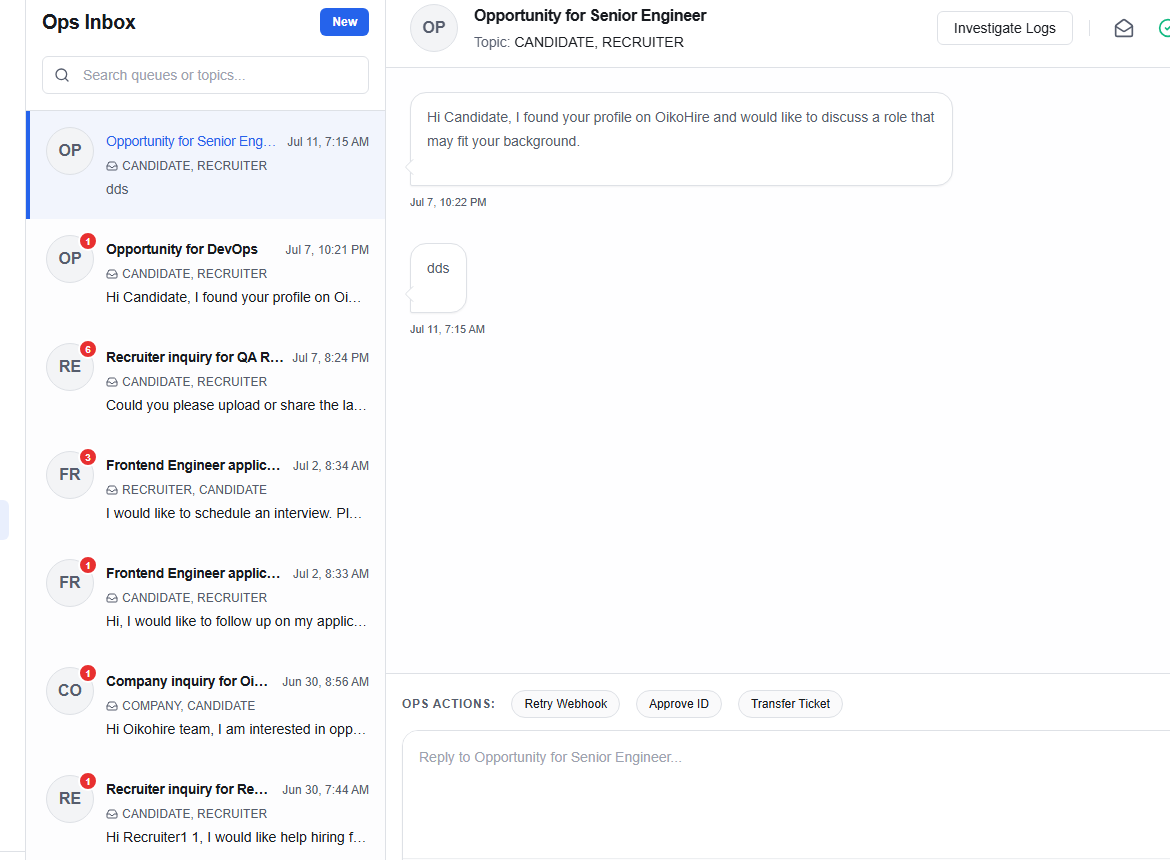
The Support Messages console (/ops/messages) is a real-time messaging hub for Ops agents and Administrators to handle direct support chats and resolve tickets with candidates and recruiters.
Workspace layout
The messaging workspace is split into three main modules:
1. Conversation list (Left pane)
Lists all active support conversation channels:
- Search bar: Filter chats by participant name, email, or message body.
- Unread indicators: Highlight threads that have new, unread messages.
- Draft labels: Displays a preview label if you have an unsent local message draft.
- New Conversation: Click
+ New conversationto start a chat with any user on the platform.
2. Chat feed (Middle pane)
Displays the scrollable history of the selected conversation:
- Message bubbles: Colour-coded bubbles distinguishing user replies, agent replies, and automated system prompts.
- Timestamp labels: Detailed dates and relative delivery times.
- File attachments: Downloadable attachments (resumes, screenshots, invoice copies).
- Status indicators: Delivery checks and retry controls for failed outgoing messages.
3. Messaging composer (Bottom pane)
- Text input: Rich-text entry for drafting replies.
- File attachment button: Upload files (up to 10MB) to attach to your reply.
- Action Request button: Trigger a platform action request (e.g., system sync, refund pre-approval, account unlock) linked to the conversation thread.
Standard workflows
Handling incoming chats
- Filter the list to unread conversations.
- Select the chat card to load the messages thread.
- Draft a reply in the composer.
- If the user requires a system action, click Action Request to route the request to the appropriate queue.
- Click Send or press
Enterto deliver.