Choose your role and finish onboarding
Once your account is verified, OikoHire sends you to the setup flow for the role you selected at signup. If your account has more than one eligible role, Account roles lets you choose the context you want to use now.
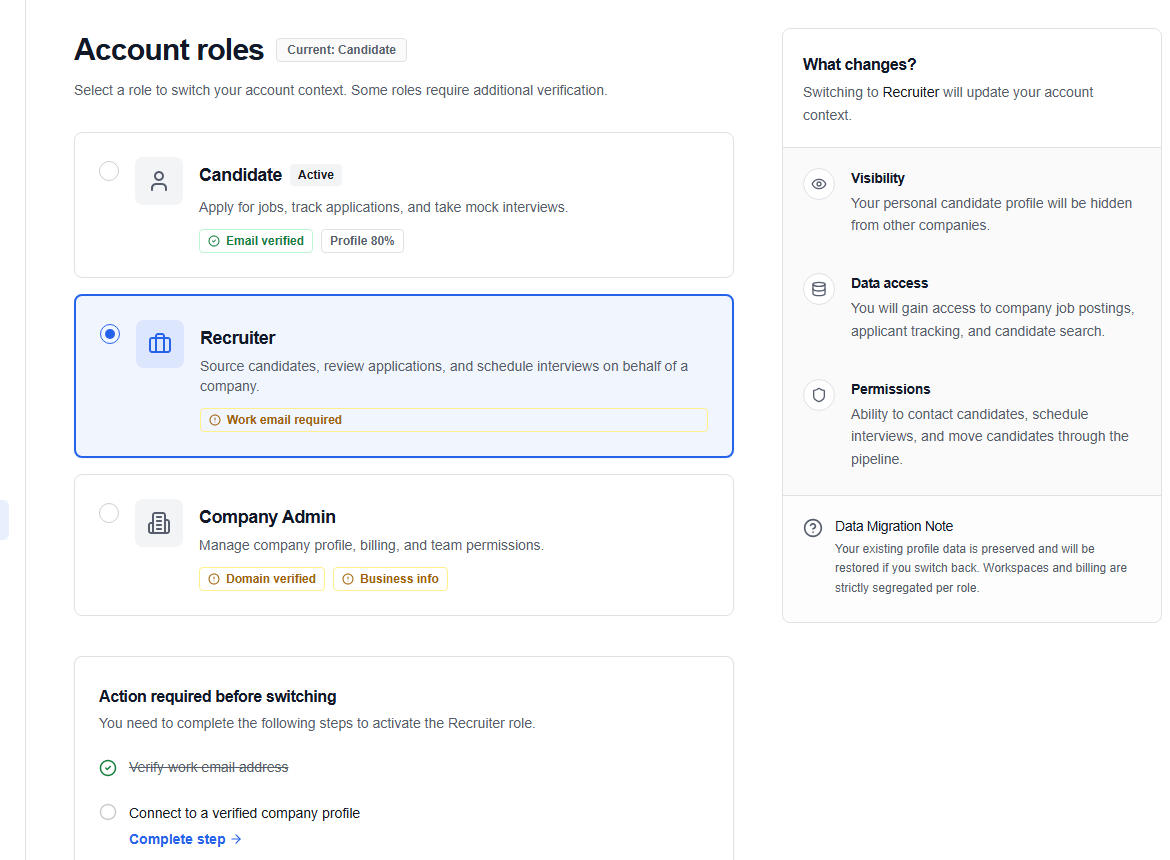
Where each role starts
| Role | Setup path | Active dashboard |
|---|---|---|
| Candidate | /onboarding/candidate | /dashboard/candidate |
| Recruiter | /onboarding/recruiter | /dashboard/recruiter |
| Company | /onboarding/company | /dashboard/company |
OikoHire keeps onboarding and dashboard routes role-scoped. If you paste a route for a role you cannot use, you’ll be sent back to your allowed home page.
What you’ll set up
Candidate
Add the basics that improve matching: your profile, resume or LinkedIn details, skills, target roles, and preferences. See Candidate onboarding.
Recruiter
Set up your public recruiter identity and working details before moving into candidate search and job management. See Recruiter onboarding.
Company
Create or confirm the company profile, hiring details, and team context. See Company onboarding.
Switching roles later
- Open the account menu in the header.
- Choose Switch role or open
/account/roles. - Select an available role.
- Complete that role’s onboarding if it is not finished yet.
Changing context does not merge role-specific profiles. Candidate resume data, recruiter activity, and company workspace data remain attached to their own role records.
If a role is shown as unavailable, follow the verification instruction on the page or ask the appropriate company or OikoHire administrator for access.